Password Reset / Forgot Password Page
2. Overview
Purpose: This page allows users (both job seekers and employers) to reset their password when they've forgotten it or are unable to access their account.
Target Users:
- Job seekers who have forgotten their login password
- Employers who cannot access their account
- Any registered user experiencing login difficulties due to password issues
When to Use:
- When you've forgotten your password
- When you're unable to sign in due to incorrect password
- When you want to change your password for security reasons
- When your account may have been compromised
Key Features:
- Simple email-based password reset process
- Security code sent to registered email
- 30-minute time limit for code validity
- Clear instructions and guidance
- Easy navigation back to login page
3. Navigation Path
Login Page → Forgot Password? link → Reset Password Page (Current)
Or:
Sign In Page (Job Seeker or Employer) → Forgot Password? → Reset Password
Or:
Direct URL access (if password reset link sent via email)
4. Page Layout Breakdown
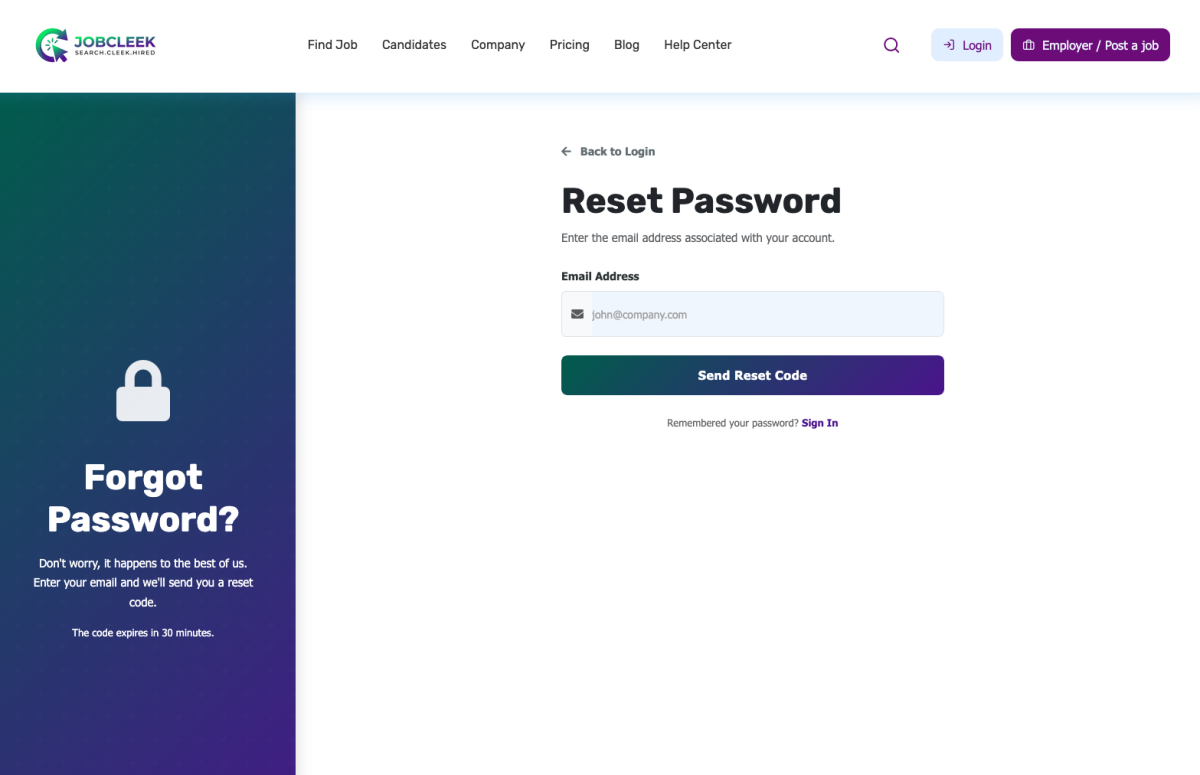
Left Section – Information Panel (Dark Gradient Background)
Visual Element:
- Large padlock icon (white/light colored)
Main Heading:
- "Forgot Password?"
Explanatory Text:
- "Don't worry, it happens to the best of us. Enter your email and we'll send you a reset code."
Time Limit Notice:
- "The code expires in 30 minutes."
Color Scheme:
- Gradient from teal/dark green (top) to deep purple/navy (bottom)
Top Navigation Bar
- JobCleek logo (top left)
- Main menu: Find Job, Candidates, Company, Pricing, Blog, Help Center
- Search icon
- Login button
- "Employer / Post a job" button (purple)
Right Section – Password Reset Form
Navigation Link:
- "← Back to Login" (top left, with back arrow)
Page Header:
- Title: "Reset Password"
- Subtitle: "Enter the email address associated with your account."
Form Fields:
Email Address Field:
- Label: "Email Address"
- Input field with placeholder: "user@example.com"
- Email icon prefix in the input field
Action Button:
- "Send Reset Code" button (full-width, gradient teal-to-purple)
Bottom Link:
- "Remembered your password? Sign In"
5. Step-by-Step User Guide
To Reset Your Password:
- Navigate to the Reset Password page
- From the login page, click "Forgot Password?"
- Or access directly if you received a password reset link
- Enter your registered email address
- Type the email address you used when creating your account
- Ensure there are no typos or extra spaces
- Example: "john.smith@email.com"
- Click "Send Reset Code"
- The system will send a security code to your email
- This may take 1-2 minutes to arrive
- Check your email inbox
- Look for an email from JobCleek (e.g., noreply@jobcleek.com)
- Subject line may be: "Password Reset Code" or "Reset Your Password"
- Also check your spam/junk folder if you don't see it
- Note the time limit
- The reset code expires in 30 minutes
- You must complete the process within this timeframe
- Enter the reset code (on the next page)
- Copy the code from your email
- Paste or type it into the verification field
- The code is typically 6-8 characters (numbers or alphanumeric)
- Create your new password (on the following page)
- Enter a strong, secure password
- Confirm the password by entering it again
- Follow any password requirements displayed
- Submit your new password
- Click the confirmation button
- You'll receive a success message
- Sign in with your new password
- Return to the login page
- Use your email and new password to access your account
If You Remember Your Password:
- Click "Sign In" at the bottom of the form
- You'll be redirected back to the login page
- Enter your credentials normally
If the Code Expires:
- Return to this Reset Password page
- Enter your email address again
- Click "Send Reset Code" to receive a new code
- Complete the process within 30 minutes
6. Fields, Buttons & Controls Explanation
|
Element |
Purpose |
Required |
Input Type |
Validation/Notes |
|---|---|---|---|---|
|
Back to Login |
Return to sign-in page |
N/A |
Link |
Cancels password reset process |
|
Email Address |
User's registered email |
Required |
|
Must match an existing account |
|
Send Reset Code |
Submit email and request code |
N/A |
Button |
Triggers email with reset code |
|
Sign In link |
Navigate to login page |
N/A |
Link |
For users who remember their password |
7. Tips & Best Practices
✅ Use the exact email address you registered with – The system can only send codes to registered emails
✅ Check spam/junk folders – Password reset emails sometimes get filtered
✅ Act quickly – You have 30 minutes from receiving the code to complete the reset
✅ Keep your email tab open – You'll need to access the code quickly
✅ Create a strong new password – Use a mix of uppercase, lowercase, numbers, and special characters
✅ Don't share your reset code – JobCleek will never ask for your reset code via phone or chat
✅ Use a password manager – To avoid forgetting passwords in the future
✅ Update saved passwords – If your browser or password manager has saved your old password, update it
8. Common Mistakes
❌ Entering the wrong email address – Must be the exact email used during registration
❌ Using a different email than registered – If you have multiple email accounts, ensure you use the one linked to your JobCleek account
❌ Not checking spam folder – Reset emails are often filtered as spam
❌ Waiting too long – The code expires in 30 minutes; complete the process promptly
❌ Requesting multiple codes – Wait for the first email before requesting another code
❌ Typing the code incorrectly – Copy and paste the code to avoid typos
❌ Using an old/expired code – Each code can only be used once and expires after 30 minutes
9. Troubleshooting
Problem: "Email not found" or "No account associated with this email" error
Solutions:
- Double-check your email spelling
- Try alternative email addresses you may have used
- Check if you registered using Google or LinkedIn (use social sign-in instead)
- Contact support if you're certain the email is correct
- You may need to create a new account if you never registered
Problem: Reset email not arriving
Solutions:
- Wait 5-10 minutes – emails can be delayed
- Check your spam/junk folder thoroughly
- Check "Promotions" or "Updates" tabs in Gmail
- Verify you entered the correct email address
- Add noreply@jobcleek.com or support@jobcleek.com to your contacts
- Try requesting the code again after 5 minutes
- Check if your email inbox is full
- Try a different email address if you have multiple accounts
Problem: Reset code expired
Solutions:
- Return to the Reset Password page
- Enter your email address again
- Request a new reset code
- Complete the entire process within 30 minutes this time
- Have your new password ready before requesting the code
Problem: Reset code not working / "Invalid code" error
Solutions:
- Ensure you're copying the entire code (no extra spaces)
- Check that you're using the most recent code
- Verify the code hasn't expired (30-minute limit)
- Request a new code if needed
- Try typing the code manually instead of copying
Problem: Can't remember which email I used to register
Solutions:
- Try all your email addresses one by one
- Check your email inboxes for previous JobCleek communications
- Look for welcome emails or job alerts from JobCleek
- Contact support with identifying information (name, phone number)
- Check if you registered via Google or LinkedIn
Problem: "Send Reset Code" button not working
Solutions:
- Ensure you've entered an email address in the correct format
- Check your internet connection
- Try refreshing the page
- Clear browser cache and cookies
- Try a different browser
- Disable browser extensions temporarily
Problem: Registered with social login (Google/LinkedIn)
Solutions:
- You may not have a password – use social sign-in instead
- Go back to the login page
- Click "Continue with Google" or "Continue with LinkedIn"
- If you want to set a password, contact support
10. Related Pages / Next Steps
After clicking "Send Reset Code":
- Verify Reset Code Page – Enter the code sent to your email
- Create New Password Page – Set your new password
- Password Reset Success Page – Confirmation message
- Login Page – Sign in with your new password
Related Documentation:
- How to Sign In (Job Seeker)
- How to Sign In (Employer)
- Account Security Best Practices
- How to Change Your Password (from within your account)
- Account Recovery Guide
- Contact Support
Important Notes
⚠️ Security Information:
- Reset codes are single-use only
- Each code expires after 30 minutes for security
- JobCleek will never ask for your reset code via phone, chat, or social media
- If you didn't request a password reset, ignore the email and secure your account
⚠️ Time Sensitivity:
- You have 30 minutes from receiving the code to complete the reset process
- Plan to complete the entire process in one session
- Have your new password ready before requesting the code
⚠️ Email Delivery:
- Reset emails typically arrive within 1-2 minutes
- Always check spam/junk folders
- If using Gmail, check Promotions and Updates tabs
- Add JobCleek email addresses to your contacts to prevent filtering
⚠️ Account Type:
- This process works for both Job Seeker and Employer accounts
- If you registered using Google or LinkedIn, you may not have a password
- Social login users should use their social account to sign in
⚠️ Others pages (Due to Screenshot Limitations):
- The exact format of the reset code is not shown (assumed to be 6-8 characters)
- Subsequent pages (code verification, new password creation) are not visible
- Email sender address is inferred (e.g., noreply@jobcleek.com)
- Password requirements for the new password are not specified
- Success/error message formats are not shown
⚠️ Multiple Attempts:
- If you request multiple codes, only the most recent one will work
- Previous codes are invalidated when a new one is requested
- There may be a limit on how many codes you can request per hour (anti-spam measure)
Password Reset Process Flow
Complete Process Overview:
- Reset Password Page (Current) → Enter email
- Email Sent Confirmation → Check inbox
- Verify Code Page → Enter 6-8 digit code
- Create New Password Page → Enter and confirm new password
- Success Confirmation → Password updated
- Login Page → Sign in with new credentials
Estimated Time: 5-10 minutes (including email delivery)
When to Contact Support
Contact JobCleek support if:
- You don't receive the reset email after 15 minutes (and checked spam)
- You receive an error message that persists
- You can't remember which email you used to register
- You believe your account has been compromised
- You need to change the email address associated with your account
- You're locked out of your email account and can't receive the code
Support Access:
- Click "Help Center" in the top navigation
- Look for "Contact Support" or "Submit a Ticket"
- Provide: Your name, phone number, and any account details you remember
This documentation is ready for direct use in your knowledge base and provides comprehensive guidance for users who need to reset their password on the JobCleek platform.