2. Overview
Purpose: This page is the first step in the employer onboarding process where new employers provide essential company information to create their profile on JobCleek.
Target Users: New employers who have just registered and need to complete their company profile before posting jobs.
When to Use: Immediately after employer registration, or when prompted to complete company profile setup.
Key Features:
- Comprehensive company information form
- Multi-step onboarding process (Step 1: Company Profile)
- Required and optional fields clearly marked
- Progress tracking via sidebar navigation
- Direct continuation to Administrator Setup (Step 2)
3. Navigation Path
Employer Registration → Email Verification → Company Information Setup (Current Page)
Or:
Employer Dashboard → Settings → Company Profile → Edit
4. Page Layout Breakdown
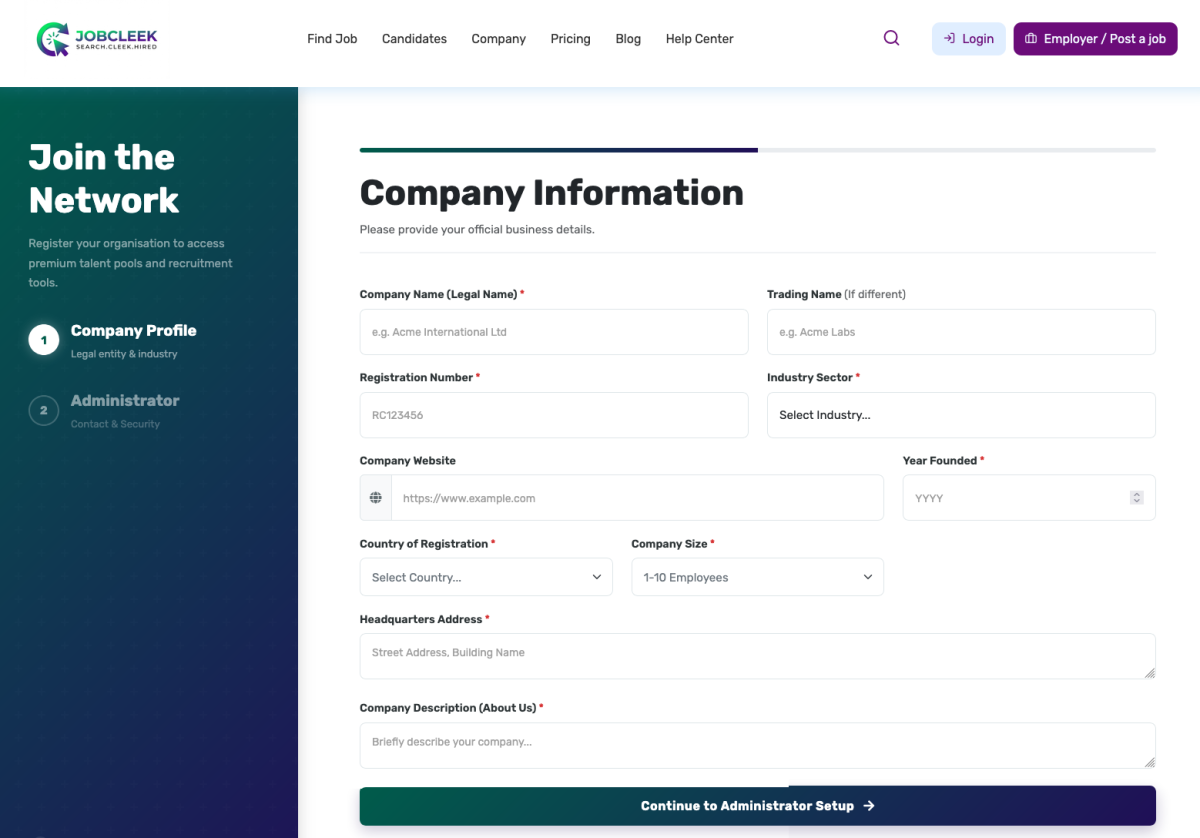
Left Sidebar – Onboarding Progress
- Step Indicator:
- Step 1: Company Profile (active, white circle with checkmark)
- Step 2: Administrator (inactive, numbered circle)
Main Content Area – Company Information Form
Page Header:
- Title: "Company Information"
- Subtitle: "Please provide your official business details"
Form Fields (Left Column):
- Company Name (Legal Name) – Required
- Registration Number – Required
- Company Website – with URL prefix
- Country of Registration – Dropdown (Required)
- Headquarters Address – Text area (Required)
Form Fields (Right Column):
- Trading Name (if different) – Optional
- Industry Sector – Dropdown (Required)
- Year Founded – Year picker (Required)
- Company Size – Dropdown
- Company Description (About Us) – Text area (Optional)
Bottom Action:
- "Continue to Administrator Setup" button (full-width, gradient purple-to-blue)
5. Step-by-Step User Guide
To Complete Company Information Setup:
- Enter Company Name (Legal Name) – Required
- Type your company's official registered name
- Example: "Acme International Ltd."
- Enter Trading Name (if different) – Optional
- If your company operates under a different name, enter it here
- Example: "Acme Labs"
- Leave blank if same as legal name
- Enter Registration Number – Required
- Provide your company's official registration/incorporation number
- Format varies by country (e.g., Companies House number in UK)
- Select Industry Sector – Required
- Click the dropdown menu
- Choose the industry that best describes your business
- Example: "Technology", "Healthcare", "Finance"
- Enter Company Website – Required
- Type your company's website URL
- The "https://www.example.com" prefix is provided
- Example: "acmecompany.com"
- Enter Year Founded – Required
- Select or type the year your company was established
- Format: YYYY (e.g., 2015)
- Select Country of Registration – Required
- Click the dropdown
- Choose the country where your company is legally registered
- Select Company Size – Required
- Click the dropdown
- Choose the range that matches your employee count
- Example: "1-10 Employees", "11-50 Employees", etc.
- Enter Headquarters Address – Required
- Type your company's main office address
- Include: Street address, Building name, City, Postal code
- Use multiple lines for clarity
- Enter Company Description (About Us) – Optional
- Briefly describe your company (recommended for better visibility)
- Suggested content: What you do, your mission, company culture
- Character limit may apply
- Review all information for accuracy
- Click "Continue to Administrator Setup" to proceed to Step 2
6. Fields, Buttons & Controls Explanation
|
Field Name |
Purpose |
Required |
Input Type |
Validation/Notes |
|---|---|---|---|---|
|
Company Name (Legal Name) |
Official registered company name |
Required |
Text |
Must match legal documents |
|
Trading Name (if different) |
Brand or operating name |
Optional |
Text |
Only if different from legal name |
|
Registration Number |
Company registration/incorporation number |
Required |
Text/Number |
Format varies by country |
|
Industry Sector |
Business category |
Required |
Dropdown |
Select from predefined list |
|
Company Website |
Company URL |
Required |
URL |
Must be valid web address |
|
Year Founded |
Establishment year |
Required |
Year picker |
YYYY format, cannot be future date |
|
Country of Registration |
Legal jurisdiction |
Required |
Dropdown |
Select from country list |
|
Company Size |
Number of employees |
Required |
Dropdown |
Select range (e.g., 1-10, 11-50) |
|
Headquarters Address |
Main office location |
Required |
Text area |
Full address including postal code |
|
Company Description (About Us) |
Company overview |
Optional |
Text area |
Recommended for profile completeness |
|
Continue to Administrator Setup |
Submit and proceed |
N/A |
Button |
Saves data and moves to Step 2 |
7. Tips & Best Practices
✅ Use your legal company name exactly – Must match official registration documents for verification
✅ Complete optional fields – A complete profile attracts better candidates
✅ Write a compelling company description – Highlight your culture, mission, and what makes you unique
✅ Double-check your website URL – Ensure it's accessible and professional
✅ Be accurate with company size – This helps candidates understand your organization
✅ Keep registration documents handy – You'll need your registration number and official details
✅ Save your progress – The system may auto-save, but complete the form in one session if possible
8. Common Mistakes
❌ Using brand name instead of legal name – The "Company Name" field requires your official registered name
❌ Incorrect registration number format – Different countries have different formats; ensure yours matches official documents
❌ Incomplete address – Missing postal codes or city names can cause verification issues
❌ Wrong country of registration – Select where the company is legally registered, not where you operate
❌ Leaving company description blank – While optional, this significantly impacts your profile's appeal
❌ Invalid website URL – Ensure your website is live and accessible before submitting
9. Troubleshooting
Problem: "Invalid registration number" error
Solutions:
- Verify the number against your official registration documents
- Check for extra spaces or special characters
- Ensure you're using the format required in your country
- Contact support if you're certain the number is correct
Problem: Can't find my industry in the dropdown
Solutions:
- Choose the closest related industry
- Select "Other" if available
- Contact support to request your specific industry be added
Problem: Form won't submit / "Continue" button not working
Solutions:
- Check that all required fields (marked with *) are completed
- Scroll up to see if there are error messages
- Ensure your website URL is in the correct format
- Try refreshing the page (your data may be auto-saved)
Problem: Website URL not accepted
Solutions:
- Remove "http://" or "https://" – the system adds this automatically
- Ensure the domain is valid and accessible
- Check for typos in the URL
- If you don't have a website yet, contact support for alternatives
Problem: Lost progress after closing the page
Solutions:
- Check if the system auto-saved your data by returning to the page
- Complete the form in one session to avoid data loss
- Contact support if you need to recover your information
10. Related Pages / Next Steps
After clicking "Continue to Administrator Setup":
- Step 2: Administrator Setup – Add admin users and set permissions
- Employer Dashboard – Access your main control panel
- Post Your First Job – Create and publish job listings
- Company Profile Preview – See how candidates view your profile
Related Documentation:
- Employer Registration Guide
- Administrator Setup Instructions (Step 2)
- How to Post a Job
- Company Profile Best Practices
- Verification Process Guide
Important Notes
⚠️ Assumptions Made (Due to Screenshot Limitations):
- Exact dropdown options for Industry Sector, Company Size, and Country are not visible
- Character limits for text fields are not shown
- Validation rules beyond "required" status are inferred
- Auto-save functionality is assumed but not confirmed
- The exact format required for Registration Number may vary by country
⚠️ Verification Process:
- Some information (like registration number) may require verification before your account is fully activated
- Keep official documents ready in case additional verification is requested
⚠️ Data Privacy:
- All information provided is subject to JobCleek's privacy policy
- Ensure you have authorization to provide company information on behalf of your organization
This documentation is ready for direct use in your knowledge base. Each page follows the consistent structure you requested and provides comprehensive guidance for users at all levels.