2. Overview
Purpose: This page allows job seekers to sign into their existing JobCleek account to access job listings, manage applications, and update their profile.
Target Users: Job seekers who have already registered on the platform.
When to Use: When returning users need to access their account to search for jobs, view applications, or manage their profile.
Key Features:
- Email and password authentication
- "Remember me" option for convenience
- Password recovery functionality
- Alternative sign-in via Google or LinkedIn
- Quick access to employer sign-in option
3. Navigation Path
Homepage → Login (top right) → Job Seeker tab
Or directly via URL when clicking "Sign In" from any page while not authenticated.
4. Page Layout Breakdown
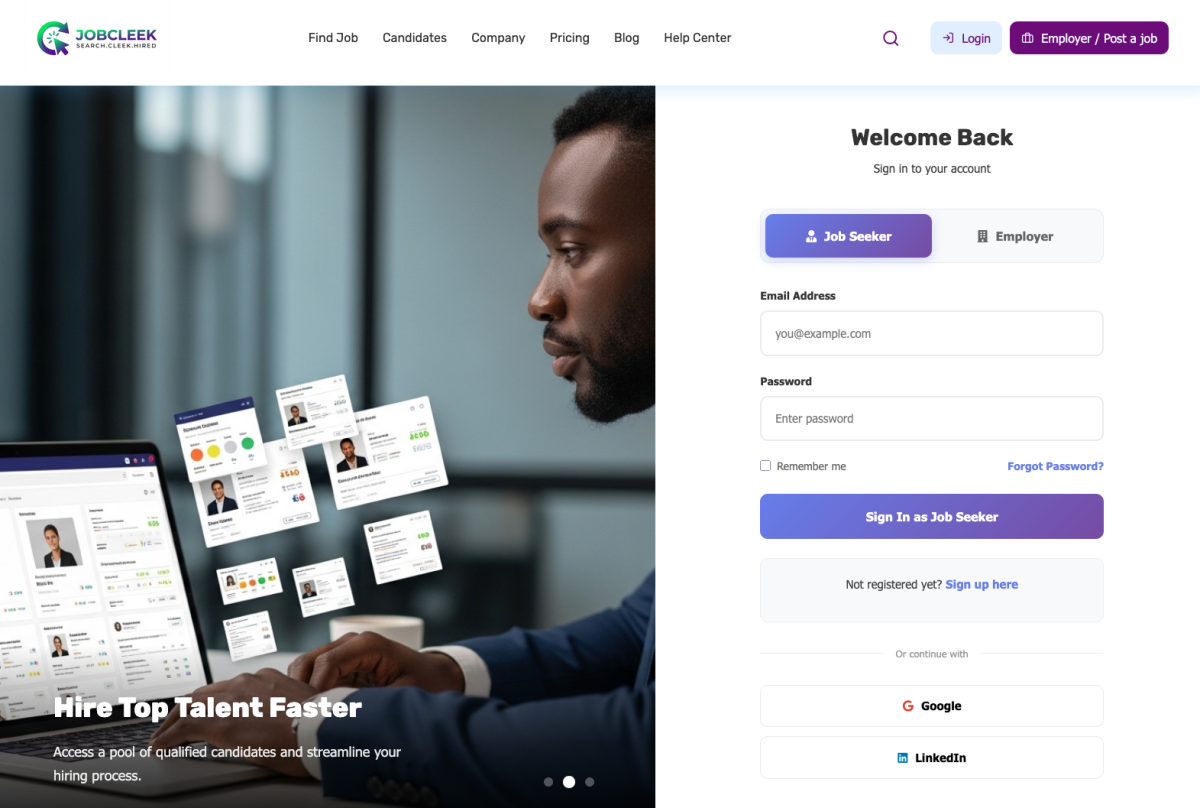
Left Section – Hero Banner
- Large background image featuring a professional using the platform
- Headline: "Hire Top Talent Faster"
- Subheading describing the platform's value proposition
- Carousel indicators showing multiple slides (currently on slide 1 of 3)
Top Navigation Bar
- JobCleek logo (top left)
- Main menu: Find Job, Candidates, Company, Pricing, Blog, Help Center
- Search icon
- Login button
- "Employer / Post a job" button (purple, prominent)
Right Section – Sign In Form
- "Welcome Back" heading
- "Sign in to your account" subheading
- Two-tab selector: Job Seeker (active, purple) | Employer (inactive)
- Email Address input field
- Password input field
- "Remember me" checkbox
- "Forgot Password?" link (blue, right-aligned)
- "Sign In as Job Seeker" button (large, purple)
- "Not registered yet? Sign up here" link
- Divider with "or continue with"
- Social sign-in buttons: Google and LinkedIn
5. Step-by-Step User Guide
To Sign In as a Job Seeker:
- Navigate to the JobCleek homepage
- Click "Login" in the top right corner
- Ensure the "Job Seeker" tab is selected (purple highlight)
- Enter your registered email address in the "Email Address" field
- Enter your password in the "Password" field
- (Optional) Check "Remember me" to stay logged in on this device
- Click the "Sign In as Job Seeker" button
- You will be redirected to your dashboard or the page you were trying to access
Alternative Sign-In Methods:
Using Google:
- Click the "Google" button below the main sign-in form
- Follow Google's authentication prompts
- Grant necessary permissions
- You'll be signed in automatically
Using LinkedIn:
- Click the "LinkedIn" button
- Authorize JobCleek to access your LinkedIn profile
- Complete authentication
- You'll be signed in automatically
If You Forgot Your Password:
- Click "Forgot Password?" (blue link on the right)
- Follow the password recovery process (see related documentation)
If You're Not Registered:
- Click "Sign up here" at the bottom of the form
- Complete the registration process
6. Fields, Buttons & Controls Explanation
|
Element |
Purpose |
Required |
Input Type |
Notes |
|---|---|---|---|---|
|
Job Seeker / Employer tabs |
Switch between user types |
N/A |
Toggle |
Determines which sign-in form appears |
|
Email Address |
User's registered email |
Required |
Text (email format) |
Must match registration email |
|
Password |
Account password |
Required |
Password (masked) |
Case-sensitive |
|
Remember me |
Keep user logged in |
Optional |
Checkbox |
Recommended for personal devices only |
|
Forgot Password? |
Initiate password reset |
N/A |
Link |
Opens password recovery flow |
|
Sign In as Job Seeker |
Submit credentials |
N/A |
Button |
Primary action button |
|
Sign up here |
Navigate to registration |
N/A |
Link |
For new users |
|
Google button |
OAuth sign-in |
N/A |
Button |
Requires Google account |
|
LinkedIn button |
OAuth sign-in |
N/A |
Button |
Requires LinkedIn account |
7. Tips & Best Practices
✅ Use "Remember me" only on personal devices – Never on shared or public computers
✅ Use social sign-in for faster access – If you registered via Google or LinkedIn, use the same method to sign in
✅ Keep your password secure – Use a strong, unique password and consider a password manager
✅ Bookmark the login page – For quick access to your account
✅ Check your email spelling – Most login failures are due to typos in the email field
8. Common Mistakes
❌ Using the wrong tab – Employers trying to sign in via the Job Seeker tab (and vice versa)
❌ Incorrect email format – Forgetting the @ symbol or domain extension
❌ Case-sensitive password errors – Caps Lock being on accidentally
❌ Using social sign-in when registered with email – If you registered with email/password, you must sign in that way (not via Google/LinkedIn) unless you've linked accounts
❌ Clicking "Sign up" when already registered – This creates duplicate accounts
9. Troubleshooting
Problem: "Invalid email or password" error
Solutions:
- Double-check your email spelling
- Verify Caps Lock is off
- Try the "Forgot Password?" link to reset
- Ensure you're using the correct tab (Job Seeker vs Employer)
Problem: "Remember me" not working
Solutions:
- Check if your browser allows cookies
- Clear browser cache and try again
- Disable private/incognito browsing mode
Problem: Social sign-in not working
Solutions:
- Ensure you're using the same social account you registered with
- Check if pop-ups are blocked in your browser
- Try signing in directly with email/password instead
Problem: Account locked or suspended
Solutions:
- Contact support via Help Center
- Check your email for notifications from JobCleek
- Wait 15-30 minutes if you've had multiple failed login attempts
10. Related Pages / Next Steps
After successful sign-in, you may be directed to:
- Job Seeker Dashboard – Your main hub for job searching and application management
- Profile Setup/Edit – Complete or update your professional profile
- Job Search – Browse and apply for positions
- My Applications – Track your job applications
Related Documentation:
- Job Seeker Registration Guide
- Password Reset Instructions
- Profile Setup Guide
- Job Search Tutorial