Overview
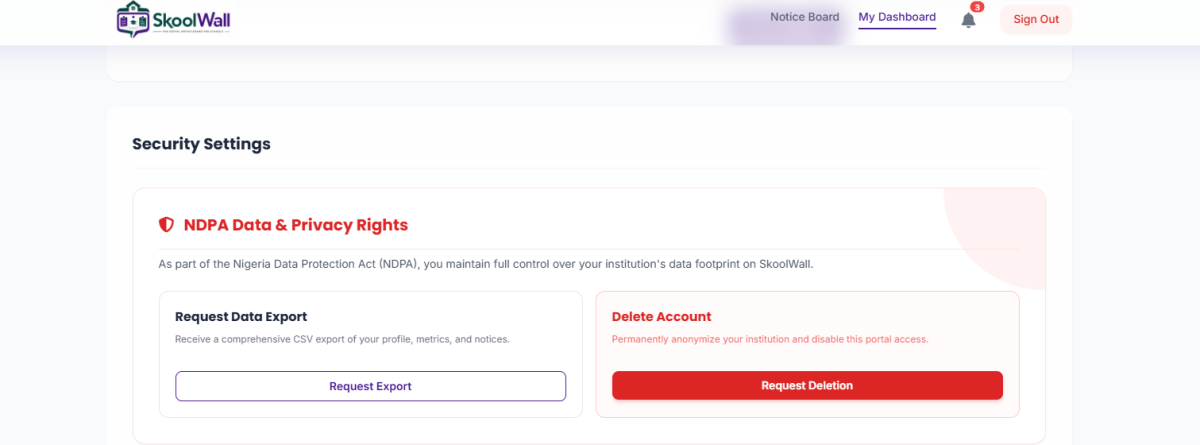
The Request Data Export feature allows institution administrators to download a complete copy of all data stored in their Skoolwall account. This ensures compliance with the Nigeria Data Protection Act (NDPA) and gives you full control over your institution's information.
What You'll Get:
- Institution profile and settings
- All created notices and content
- User preferences and configurations
- Activity logs and metadata
Target Users: School administrators, IT managers, data protection officers
When to Use:
- Compliance audits and regulatory requirements
- Data backup and archival purposes
- Migrating to another platform
- Responding to data subject access requests
- Annual data protection reviews
Navigation Path
Dashboard → Settings & Profile → Security Settings → NDPA Data & Privacy Rights
Step-by-Step Guide: How to Request Data Export
Step 1: Access Security Settings
- Log in to your Skoolwall account
- From the main dashboard, click the "Settings & Profile" tab
- Navigate to "Security Settings"
Step 2: Locate the Data Export Section
- Find the "NDPA Data & Privacy Rights" section (left side, purple background)
- Review the description to understand what data will be included
Step 3: Submit Export Request
- Click the "Request Export" button (white button with purple border)
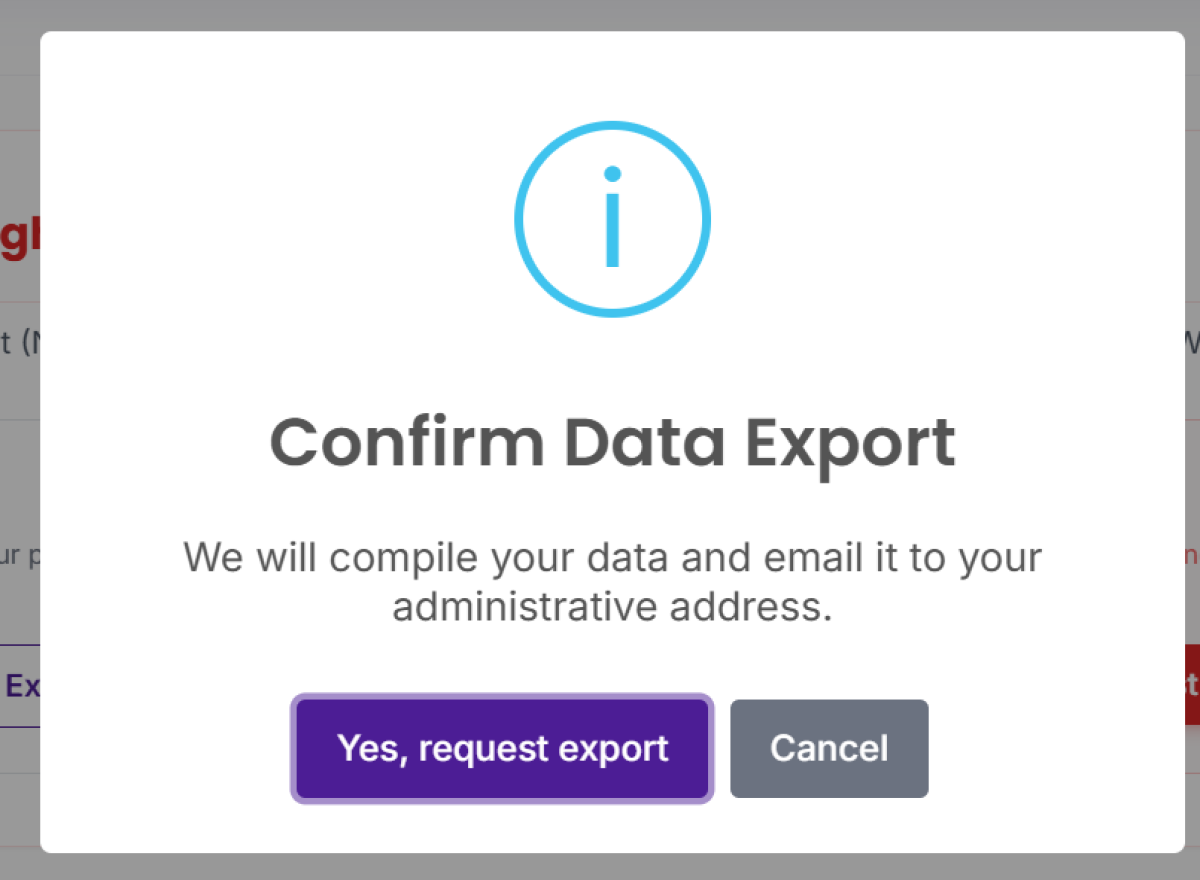
- A confirmation message will appear indicating your request has been submitted
Step 4: Receive Your Data
- Wait for an email notification (typically within 24hrs)
- Check your registered email inbox (and spam/junk folder)
- The email will contain a secure download link
Step 5: Download Your Data
- Click the download link in the email
- Save the file to a secure location on your computer
- The file will typically be in ZIP or JSON format
- Store the file securely according to your data protection policies
What's Included in the Data Export?
Your export file contains:
✅ Institution Profile
- Institution name and details
- Contact information
- Verification status
✅ Settings & Configurations
- User preferences
- Display settings
- Notification preferences
✅ Notice Board Content
- All published notices
- Draft notices
- Archived content
- Media files and attachments
✅ User Data
- User accounts and roles
- Activity logs (if applicable)
- Access permissions
Important Information
|
Detail |
Information |
|---|---|
|
Processing Time |
within 24hrs (may vary based on data volume) |
|
File Format |
ZIP archive containing JSON/CSV files |
|
Link Validity |
Download links typically expire after 7 days |
|
Frequency |
Can be requested as often as needed |
|
Cost |
Free |
Common Mistakes
❌ Not checking spam folder – Export emails may be filtered; always check junk mail
❌ Waiting too long to download – Links expire; download within 24-48 hours
❌ Forgetting to export before deletion – Always export data before requesting account deletion
❌ Not storing securely – Exported data contains sensitive information; protect it properly
Troubleshooting
|
Problem |
Solution |
|---|---|
|
Email not received after 30 minutes |
Check spam/junk folder; verify email address in profile settings; contact support |
|
Download link expired |
Submit a new export request from Security Settings |
|
File won't open or is corrupted |
Try downloading again; use a different browser; contact support |
|
Export file is empty or incomplete |
Ensure you have data in your account; contact support if issue persists |
|
Can't click Request Export button |
Verify you have administrator privileges; try refreshing the page |
Related Pages / Next Steps
- How to Request Account Deletion – Permanently delete your institution account
- Settings & Profile – Manage institution details and preferences
- User Management – Control user access and permissions
- My Notices – View and manage your notice board content
Documentation Version: 1.0
Last Updated: July 2026
Platform: Skoolwall Digital Notice Board System
Compliance: NDPA (Nigeria Data Protection Act)