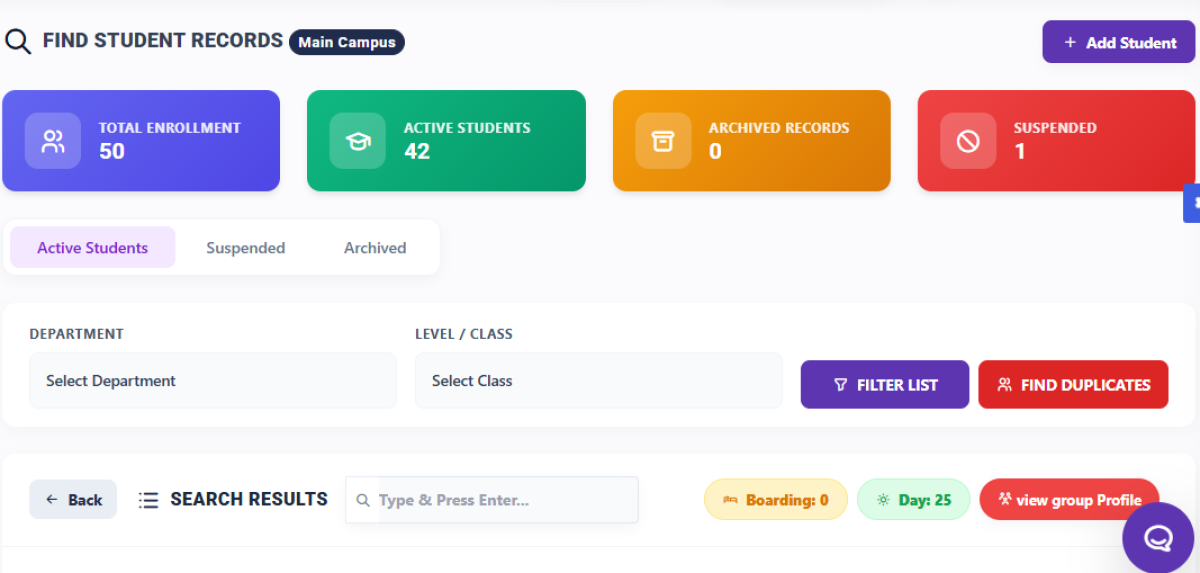
The Find Student Records page is used to review enrollment totals, search for students, filter records, identify possible duplicates, and open group-profile information.
This guide is for administrators, school staff, and other authorized users who manage student records. Use the page when you need to locate a student, review records by status, narrow results by department or class, or inspect possible duplicate records.
The screenshots confirm the visible labels, summary values, tabs, filters, actions, and results-table concepts described in this article. Explanations of behavior that is not directly visible are identified as assumptions or recommendations.
|
Expected outcome By the end of this guide, you should be able to locate the relevant student-results view and use the visible filters and actions without assuming that an unconfirmed action has completed. |
4. Page Layout Breakdown
Top bar and page heading. The top area shows the Find Student Records heading, the Main Campus context label, and a + Add Student button. The screenshot does not confirm what permissions are required to use the add-student action.
Summary cards. Four cards provide a quick view of the visible record totals:
· Total Enrollment — 50
· Active Students — 42
· Archived Records — 0
· Suspended — 1
These values are documented exactly as shown in the overview screenshot and may change in the live product.
Status tabs. The visible tabs are Active Students, Suspended, and Archived. The selected tab determines which status group is being reviewed, although the screenshots do not confirm every filtering rule behind the tabs.
Filters and search controls. The page shows Department and Level / Class controls, a Filter List action, and a Find Duplicates action. A Back control, Search Results label, and the Type & Press Enter... search field are visible in the results area.
Status chips and profile action. Visible chips or actions include Boarding: 0, Day: 25, and View group Profile. The screenshots show these labels but do not establish whether the chips are filters, counts, or both.
Student-results table. The second screenshot shows a detailed search-results view with selectable rows. Clearly visible concepts include student names, class or level information, status indicators, and guardian-related information. Column names that are not clearly readable are intentionally not reproduced.
Right-side panel. The detailed view includes a right-side filtering or selection panel with additional controls. Its exact labels and validation behavior are not sufficiently clear in the screenshot, so they should be verified in the live product.
Floating help or chat control. A circular control is visible near the lower-right corner. Its exact destination and behavior are not confirmed by the screenshots.
Screenshot 1 placeholder: Insert the uploaded overview screenshot here.
Caption: Find Student Records page overview
5. Step-by-Step User Guide
Review active student records
1. Open the student-records area and navigate to the page identified as Find Student Records. Confirm that the visible context is Main Campus, if that is the campus you intend to review.
2. Review the summary cards for the visible totals: Total Enrollment 50, Active Students 42, Archived Records 0, and Suspended 1. Treat these as the totals shown at the time of capture, not permanent values.
3. Choose Active Students, Suspended, or Archived before searching. Selecting the status tab first helps keep the search focused on the intended record group.
4. Select a value from Department, if needed. Then select a value from Level / Class, if needed. The screenshots show selected-value controls, but they do not indicate whether either field is required.
5. Click Filter List to apply the selected criteria. The button appears to apply the chosen filters; the screenshots do not confirm whether the action refreshes automatically or displays a message.
6. Click the Type & Press Enter... field, enter a student-identifying value, and press Enter. The visible wording indicates a type-and-press-Enter interaction; the supported search fields are not confirmed.
7. Review the student-results table. Check the student name, class or level information, status indicator, and guardian-related information when visible.
8. Select a student row only when the row-selection control indicates that selection is available. Confirm the student’s identifying details before taking any further action.
9. Use Find Duplicates when you need to investigate whether similar records may already exist. The screenshots do not confirm how possible duplicates are presented or resolved.
10. Use View group Profile when group-level information is needed. Whether this opens a profile, a new view, or a read-only page is not confirmed in the screenshots.
11. Use Back to return to the previous view when appropriate. Do not assume that unsaved selections or filters are retained.
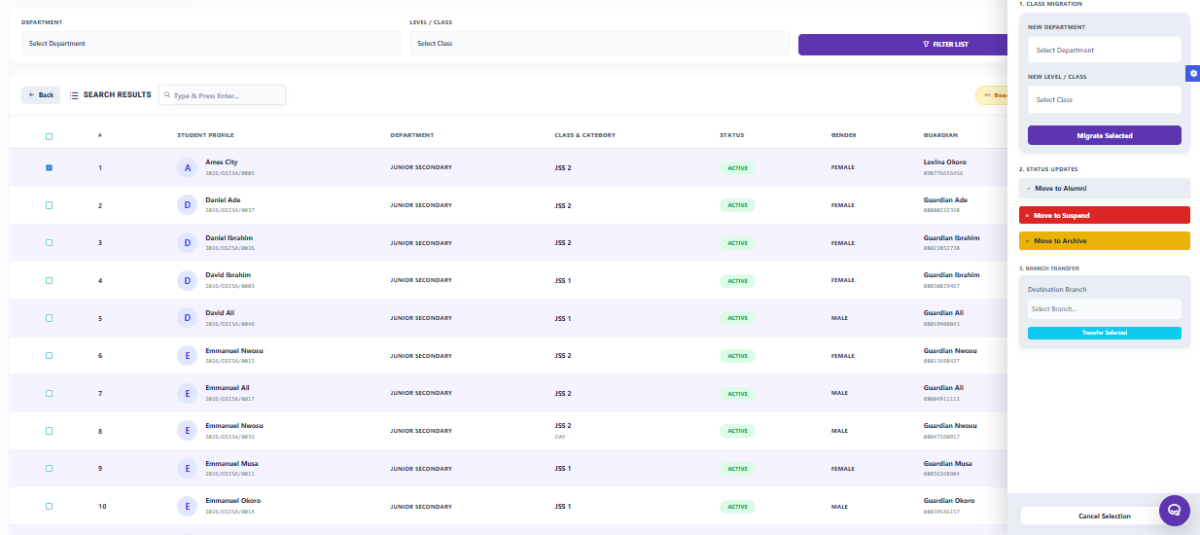
Caption: Student search results and filtering panel
Review suspended or archived records
1. Select Suspended or Archived before searching.
2. Apply Department and Level / Class only when they help narrow the review.
3. Use the search field and press Enter, then verify the row status before opening or acting on a record.
6. Fields, Buttons & Controls Explanation
|
Control name |
Purpose |
Required or optional |
Expected input or behavior |
Validation or notes |
|
Find Student Records |
Identifies the page. |
Not applicable |
Page heading. |
Visible label confirmed by the screenshot. |
|
Main Campus |
Shows the visible campus context. |
Not indicated in the screenshot |
Context label. |
Exact campus-switching behavior is not shown. |
|
+ Add Student |
Provides an apparent route to add a student. |
Not indicated in the screenshot |
Button action. |
Permissions, fields, and save behavior are unconfirmed. |
|
Total Enrollment |
Shows a summary total. |
Not applicable |
Visible value: 50. |
Value may change in the live system. |
|
Active Students card |
Shows the active-student total. |
Not applicable |
Visible value: 42. |
Card interaction is not confirmed. |
|
Archived Records card |
Shows the archived-record total. |
Not applicable |
Visible value: 0. |
Card interaction is not confirmed. |
|
Suspended card |
Shows the suspended-record total. |
Not applicable |
Visible value: 1. |
Card interaction is not confirmed. |
|
Active Students tab |
Displays or focuses the active-record group. |
Not indicated in the screenshot |
Select a status tab. |
Exact filtering rules are not shown. |
|
Suspended tab |
Displays or focuses suspended records. |
Not indicated in the screenshot |
Select a status tab. |
Confirm status in the results before acting. |
|
Archived tab |
Displays or focuses archived records. |
Not indicated in the screenshot |
Select a status tab. |
Confirm status in the results before acting. |
|
Department |
Narrows the student list by department. |
Not indicated in the screenshot |
Select a dropdown value. |
Available choices and validation are not visible. |
|
Level / Class |
Narrows the student list by level or class. |
Not indicated in the screenshot |
Select a dropdown value. |
Available choices and validation are not visible. |
|
Filter List |
Appears to apply selected criteria. |
Not indicated in the screenshot |
Click after choosing filters. |
Refresh and confirmation behavior are unconfirmed. |
|
Find Duplicates |
Appears to start a duplicate-record review. |
Not indicated in the screenshot |
Click to investigate possible matches. |
Duplicate resolution is unconfirmed. |
|
Back |
Returns to a previous view. |
Not indicated in the screenshot |
Navigation action. |
Filter and search retention are unconfirmed. |
|
Search Results |
Labels the detailed results area. |
Not applicable |
Results-view label. |
Visible context confirmed by the screenshot. |
|
Type & Press Enter... |
Searches for a student or identifying value. |
Not indicated in the screenshot |
Type a value, then press Enter. |
Supported search fields and validation are not shown. |
|
Boarding: 0 |
Shows a visible chip or action related to boarding records. |
Not indicated in the screenshot |
Visible chip or action. |
Whether it filters or only reports a count is unconfirmed. |
|
Day: 25 |
Shows a visible chip or action related to day records. |
Not indicated in the screenshot |
Visible chip or action. |
Whether it filters or only reports a count is unconfirmed. |
|
View group Profile |
Appears to open group-profile information. |
Not indicated in the screenshot |
Click or select the visible action. |
Profile editing and permissions are unconfirmed. |
|
Student-results row selection |
Allows a visible row to be selected when applicable. |
Not indicated in the screenshot |
Select the intended student row. |
Verify identifying information before proceeding. |
|
Right-side filtering or selection panel |
Provides additional visible filtering or selection controls. |
Not indicated in the screenshot |
Use only when the control label and purpose are clear. |
Exact labels, required fields, and validation must be verified live. |
7. Tips & Best Practices
· Check the status tab first. Choose Active Students, Suspended, or Archived before searching so you review the intended record group.
· Combine filters thoughtfully. Use Department and Level / Class together when you need to narrow a large result set.
· Complete the search value. Type the most complete identifying value available before pressing Enter, while avoiding assumptions about which fields the search supports.
· Review possible duplicates before creating a record. Use Find Duplicates first when a student may already exist.
· Verify status before taking action. Check the selected tab and the row’s visible status indicator, especially for suspended or archived records.
· Confirm the row before opening information. Compare the student name and other visible identifying details before selecting a row or using View group Profile.
|
Recommended practice Treat the screenshots as a visual reference. Confirm the current totals, available choices, and permitted actions in the live product before making a record change. |
8. Common Mistakes
The following are likely user errors to watch for; they are not confirmed system defects.
· Searching without pressing Enter. The search field visibly suggests a type-and-press-Enter interaction. If you only type, the results may not change.
· Leaving filters unintentionally active. A previous Department or Level / Class selection may narrow the list more than expected. Review the selected values before interpreting the results.
· Checking the wrong status tab. Searching under Active Students may not show a record that belongs under Suspended or Archived.
· Confusing archived or suspended records with active records. Confirm both the selected tab and the row’s status indicator before taking action.
· Creating a duplicate record instead of checking duplicates. Use Find Duplicates when an existing record may match the student you are trying to add or locate.
· Selecting the wrong student row. Compare the visible name, class or level, status, and guardian-related information before selecting a row.
9. Troubleshooting
No results appear
· Try: Confirm the status tab, review the selected Department and Level / Class values, enter a more complete search value, and press Enter. If the issue continues, contact an administrator or support team to confirm access and available data.
Results are unexpected
· Try: Clear or revise filters if the interface allows it, check that the intended status tab is selected, and run the search again. The screenshots do not show a specific reset action, so use only controls available in the live system.
A duplicate warning or possible match appears
· Try: Compare the visible student information before creating or changing a record. Follow the organization’s duplicate-management workflow. If the next action is unclear, contact an administrator rather than resolving the record based only on the warning.
An action is disabled or unclear
· Try: Confirm that the correct row, tab, or filter value is selected and that required information, if any, has been entered. Required fields and permissions are not visible in the screenshots; contact an administrator or support team if the action remains unavailable.
You are unsure of a student’s current status
· Try: Check Active Students, Suspended, and Archived separately, then verify the row’s status indicator. Escalate to an administrator or support team when the records conflict or the status cannot be confirmed.
10. Related Pages / Next Steps
The following are logical next steps based on the visible controls. Their exact page names and navigation routes should be confirmed in the live product.
· Add Student. Use the visible + Add Student action when you need to begin a new-student workflow, after checking for a possible existing record.
· Student profile or group profile. Use the visible row-selection option or View group Profile when you need more information about a selected student or group.
· Duplicate-management workflow. Use Find Duplicates to begin reviewing possible matches before creating or updating a record. Duplicate resolution is not confirmed by the screenshots.
· Archived-record review. Select Archived to review records that are not in the active group.
· Suspended-record review. Select Suspended to review suspended records and verify their status before taking action.
11. Image Placement Guidance
Screenshot 1 — overview image
Place the first uploaded screenshot immediately after the Page Layout Breakdown section and before the step-by-step instructions.
Caption: Find Student Records page overview
Callouts: Identify the summary cards, status tabs, filter controls, search field, visible status chips, and View group Profile action.
Screenshot 2 — detailed results image
Place the second uploaded screenshot immediately after the student-results-table subsection in Step-by-Step User Guide.
Caption: Student search results and filtering panel
Callouts: Identify selectable table rows, visible student information, status indicators, guardian-related information when visible, and the right-side filtering or selection panel.