1. Page Title
Exam Type Management
2. Overview
Purpose:
The Exam Type Management page allows administrators to create, view, edit, and manage different types of examinations within the system. This page serves as the central hub for configuring exam categories and their associated settings.
Target Users:
- System Administrators
- Academic Coordinators
- Examination Officers
When to Use:
Use this page when you need to:
- Set up new examination types (e.g., Internal, External, Third Term, Mid-term)
- Configure exam parameters and security settings
- Manage existing exam types
- View a summary of all exam categories in the system
3. Navigation Path
Dashboard → Exams & Report → Examination Settings → Exam Type
Alternative access via sidebar: Exams & Report (sidebar) → Examination Settings → Exam Type
4. Page Layout Breakdown
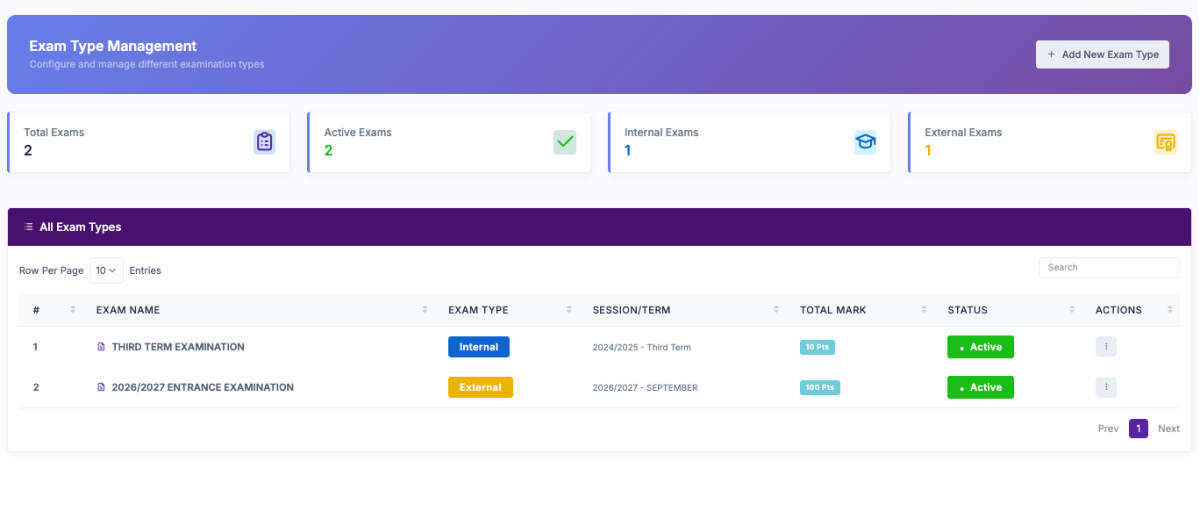
Header Section
- Page Title: "Exam Type Management" with subtitle "Create and manage different examination types"
- Primary Action Button: "Add New Exam Type" (purple button, top-right corner)
Summary Dashboard Cards (Top Row)
Four metric cards displaying exam type counts:
- Draft Exams - Shows count with document icon
- Active Exams - Shows count with checkmark icon
- Internal Exams - Shows count with refresh icon
- External Exams - Shows count with star icon

Main Data Table
Displays all exam types with the following columns:
- # (Row Number)
- EXAM NAME - Name of the examination type
- EXAM TYPE - Category badge (Internal/External)
- SESSION/TERM - Academic period information
- TOTAL MARK - Maximum score for the exam
- STATUS - Active/Inactive indicator (green/gray badge)
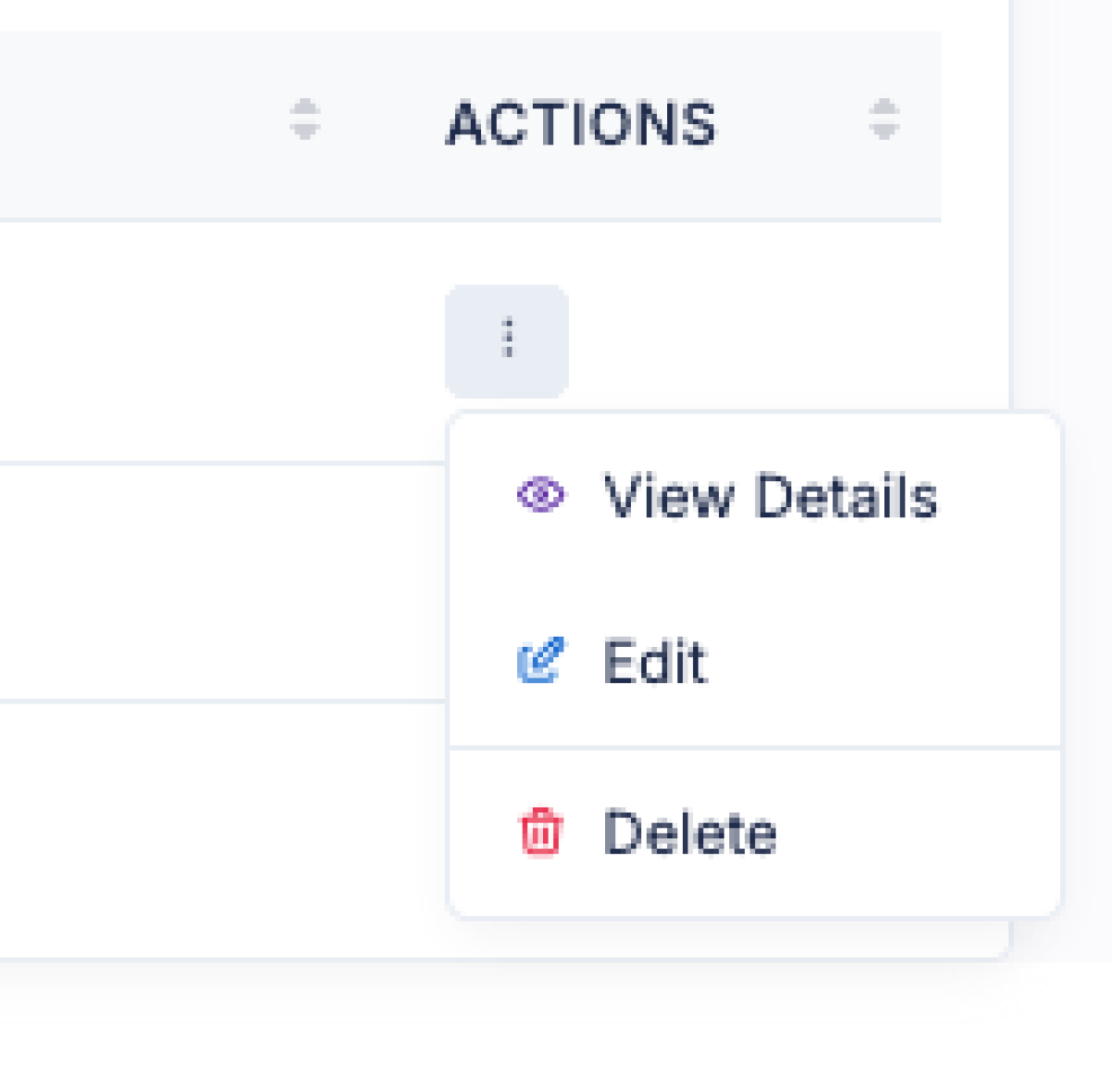
- ACTIONS - Three-dot menu for operations
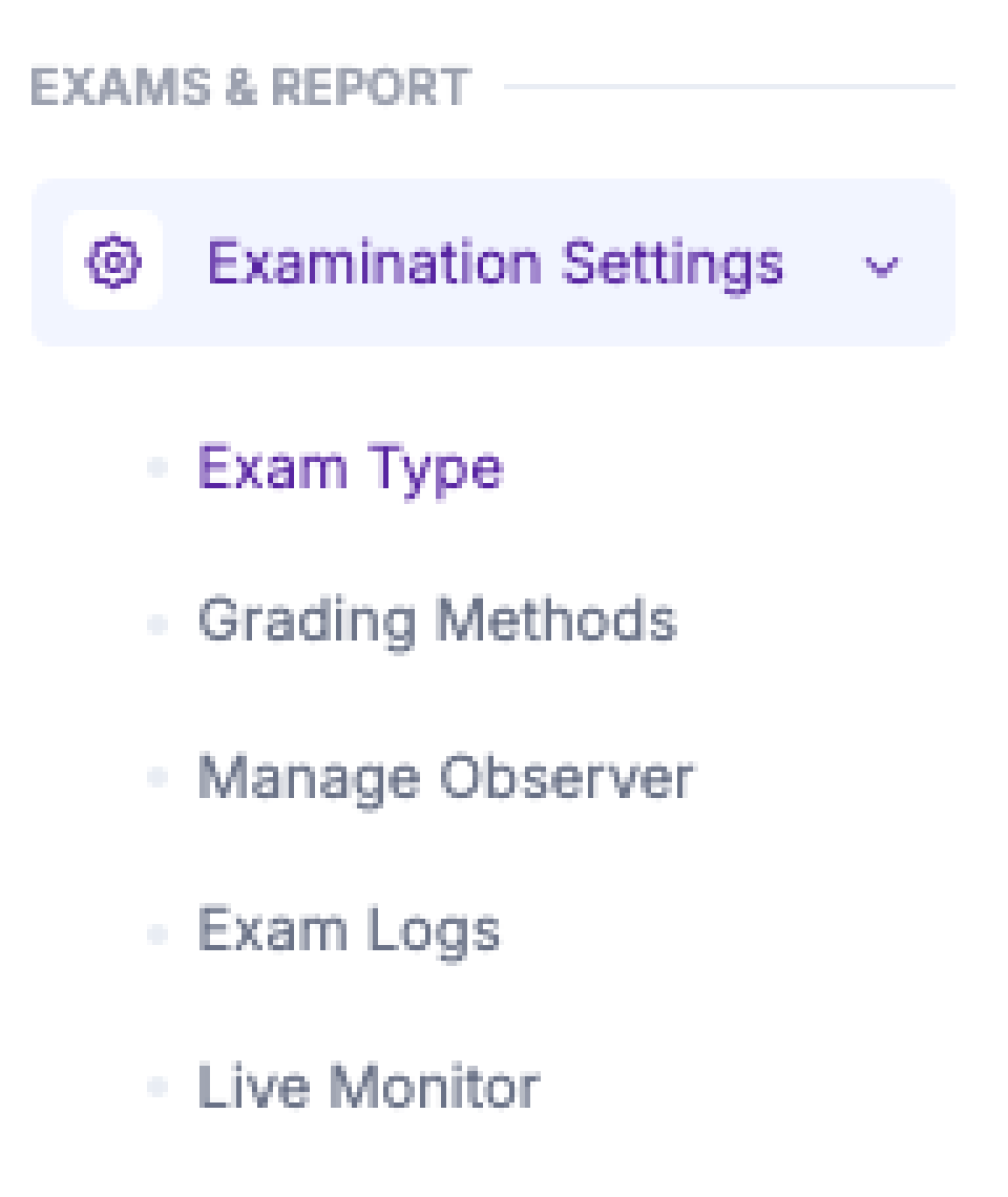
Sidebar Navigation Panel
Located on the left side, showing:
- Examination Settings (expandable)
- Exam Type
- Grading Methods
- Manage Observer
- Exam Logs
- Live Monitor
5. Step-by-Step User Guide
To View All Exam Types:
- Navigate to Exams & Report from the main dashboard
- Click Examination Settings in the sidebar
- Select Exam Type
- Review the summary cards and table listing
To Add a New Exam Type:
- Click the "Add New Exam Type" button (top-right, purple)
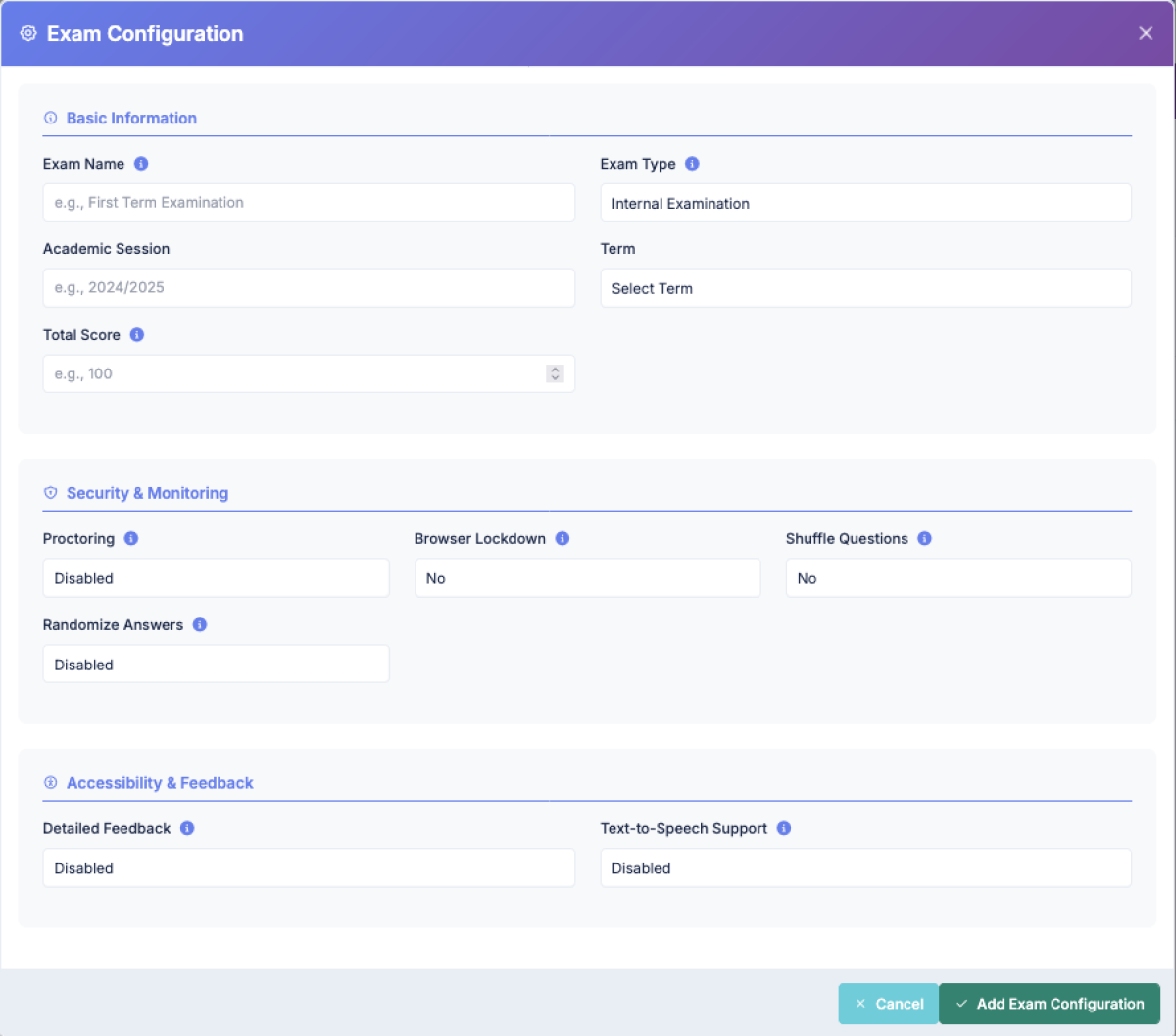
- Complete the Exam Configuration form that appears:
- Enter the Exam Name
- Select the Exam Type (Internal or External)
- Choose the Academic Session or Term
- Enter the Total Score
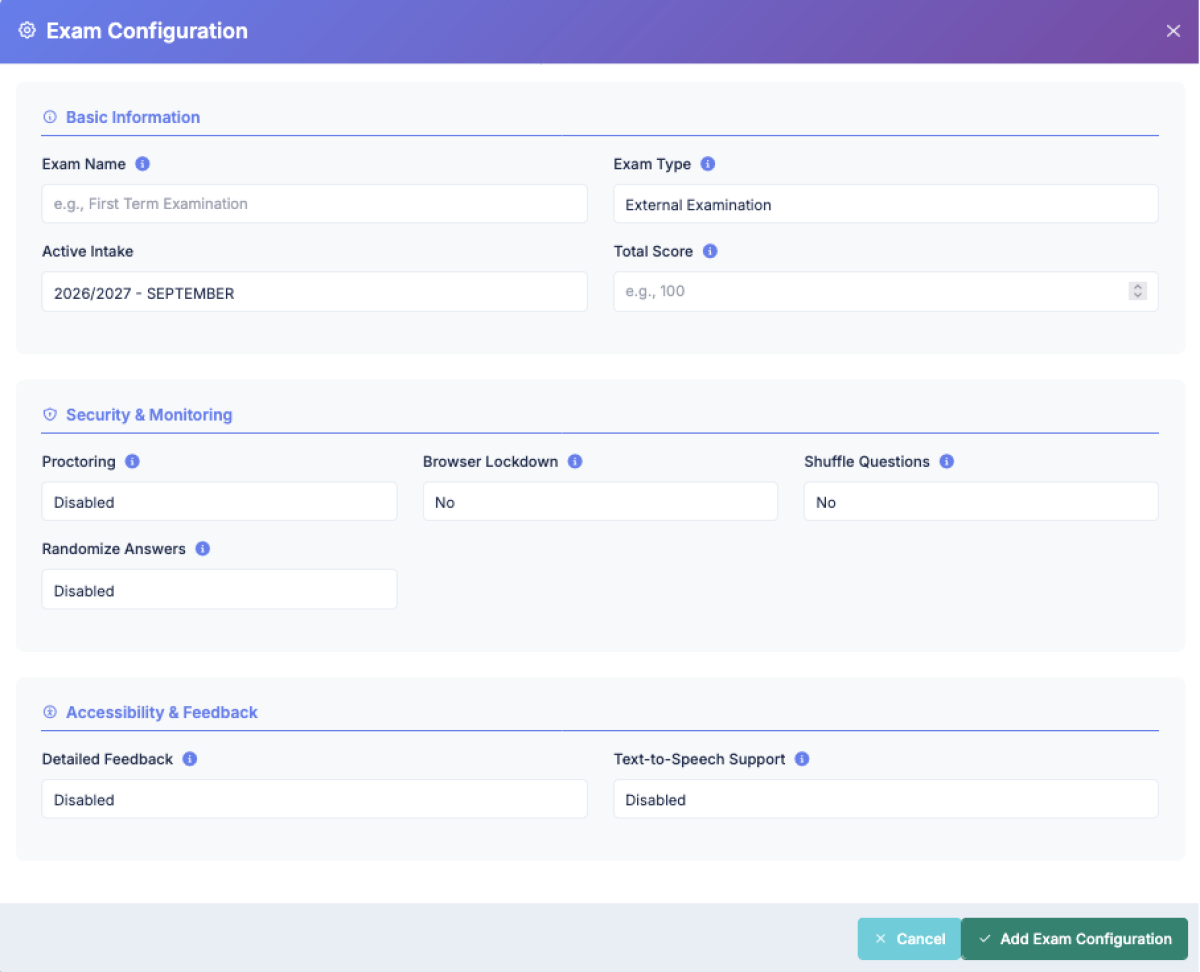
- Configure Security & Monitoring settings:
- Enable/disable Proctoring
- Set Browser Lockdown (Yes/No)
- Enable/disable Shuffle Questions
- Enable/disable Randomize Answers
- Set Accessibility & Feedback options:
- Enable/disable Detailed Feedback
- Enable/disable Text-to-Speech Support
- Click "Add Exam Configuration" to save
To Edit an Existing Exam Type:
- Locate the exam type in the table
- Click the three-dot menu in the Actions column
- Select "Edit" from the dropdown
- Modify the required fields in the configuration modal
- Click "Add Exam Configuration" to save changes
To View Exam Details:
- Click the three-dot menu in the Actions column
- Select "View Details"
- Review the complete configuration
To Delete an Exam Type:
- Click the three-dot menu in the Actions column
- Select "Delete" (red option)
- Confirm the deletion when prompted
6. Fields, Buttons & Controls Explanation
Exam Configuration Modal Fields:
Basic Information Section:
|
Field |
Purpose |
Required |
Input Type |
Notes |
|---|---|---|---|---|
|
Exam Name |
Identifies the examination |
Yes |
Text |
e.g., "First Term Examination" |
|
Exam Type |
Categorizes as Internal or External |
Yes |
Dropdown |
Pre-defined options |
|
Academic Session |
Links to academic period |
Optional |
Date/Text |
Format: YYYY/YYYY - TERM (Internal exams) |
|
Term |
Specifies the term |
Optional |
Dropdown |
Select from available terms (Internal exams) |
|
Total Score |
Maximum achievable marks |
Yes |
Number |
e.g., 100 |
|
Active Intake |
Current enrollment period |
Optional |
Text |
Format: YYYY/YYYY - TERM (External exams only) |
Security & Monitoring Section:
|
Control |
Purpose |
Options |
Default |
|---|---|---|---|
|
Proctoring |
Enables exam supervision |
Enabled/Disabled |
Disabled |
|
Browser Lockdown |
Restricts browser navigation |
Yes/No |
No |
|
Shuffle Questions |
Randomizes question order |
Yes/No |
No |
|
Randomize Answers |
Randomizes answer options |
Enabled/Disabled |
Disabled |
Accessibility & Feedback Section:
|
Control |
Purpose |
Options |
Default |
|---|---|---|---|
|
Detailed Feedback |
Provides comprehensive results |
Enabled/Disabled |
Disabled |
|
Text-to-Speech Support |
Enables audio assistance |
Enabled/Disabled |
Disabled |
Action Buttons:
- Add New Exam Type - Opens configuration modal
- View Details - Opens read-only view of exam configuration
- Edit - Opens editable configuration modal
- Delete - Removes exam type (with confirmation)
- Cancel - Closes modal without saving
- Add Exam Configuration - Saves and creates/updates exam type
Status Badges:
- Active (Green) - Exam type is currently in use
- Internal (Yellow) - Internal examination category
- External (Teal) - External examination category
7. Tips & Best Practices
✅ Naming Convention:
Use clear, descriptive names that include the term and type (e.g., "First Term Internal Examination")
✅ Security Settings:
Enable Browser Lockdown and Proctoring for high-stakes examinations
✅ Question Randomization:
Use "Shuffle Questions" and "Randomize Answers" to reduce cheating in online exams
✅ Total Score Standardization:
Maintain consistent total scores across similar exam types for easier comparison
✅ Regular Review:
Periodically review and archive unused exam types to keep the list manageable
✅ Accessibility:
Enable Text-to-Speech Support for students with visual impairments or reading difficulties
8. Common Mistakes
❌ Duplicate Exam Names:
Avoid creating multiple exam types with identical or very similar names
❌ Incorrect Total Score:
Double-check the total score matches your grading scheme before saving
❌ Missing Academic Session:
Always link exams to the correct academic session/term for proper reporting
❌ Over-Restricting Settings:
Don't enable all security features for low-stakes practice exams—it may frustrate users
❌ Deleting Active Exams:
Avoid deleting exam types that are currently in use or have historical data
9. Troubleshooting
Issue: Cannot save new exam type
Solution: Ensure all required fields (Exam Name, Exam Type, Total Score) are completed
Issue: Edit button is grayed out
Solution: Check if you have the necessary permissions; contact your system administrator
Issue: Exam type not appearing in dropdown elsewhere
Solution: Verify the exam status is set to "Active"
Issue: Cannot delete an exam type
Solution: The exam type may be linked to existing exams or student records; archive instead of deleting
Issue: Security settings not applying
Solution: Ensure settings are saved properly and the exam is published/activated
10. Related Pages / Next Steps
After creating an exam type, you may want to:
- Grading Methods - Set up grading scales and criteria
- Manage Observer - Assign proctors for monitored exams
- Exam Logs - Review exam activity and submissions
- Live Monitor - Track ongoing examinations in real-time
Related Workflows:
- Creating individual exams using the configured exam types
- Assigning exams to students or classes
- Reviewing exam results and analytics
11. Important Notes
⚠️ Assumption: The "Active Intake" field appears only for External Examination types based on the screenshots provided.
⚠️ Assumption: The difference between Internal and External exam types may affect available configuration options and workflow.
⚠️ Note: Some functionality (such as bulk operations or import/export) may exist but is not visible in the provided screenshots.
Document Version: 1.0
Last Updated: Based on screenshots provided
Status: Ready for publication with inline image references